
Shortlet staff access should follow the work a person does. Your arrival contact may need to check a guest in, while someone planning a turnover may only need to read the booking dates. Giving everyone the owner’s sign-in makes those jobs hard to separate and makes a staff change harder than it needs to be.
Cabans lets you add users and assign roles with permission boxes. This guide explains that part of the free short-let management software, including an important limit: the booking permissions are grouped. A read-only role includes Earnings; processing access includes sensitive booking actions. Do not assume there is a separate calendar-only role that hides every money detail.
You will learn: how to map a job to the actual permission boxes, add a person, create a role, assign it and review the access when duties change.
Start with a handover, then set shortlet staff access
Write down what happens during an ordinary stay before opening the roles page. Who answers a new request? Who checks the home is ready? Who meets the guest, checks any required ID and approves check-in? Who handles a problem while the guest is staying? Who inspects at departure? A small team can combine jobs, but each job still needs a named person.
Then mark which jobs actually need account access. A cleaner who only needs a departure time may not need to open booking files or Earnings at all. You can give them the minimum practical handover outside the dashboard. A local manager handling check-in and deposits needs a more trusted role and clearer instructions about when to contact you.
Separate your working policy from the product permission. Telling a manager “ask me before a refund” is a team instruction; it does not turn a broad processing role into a technical refund restriction. Choose access based on what the role permits, then agree the human approval routine alongside it.
Know what the shortlet staff roles really include
The labels sit under Orders and Products in Roles & Permissions. They are not separate switches for each stage of a stay. Read the full row before deciding whether it suits the person. The team members and permissions help guide shows the exact screen labels.
| Permission box | What it covers | Decision for the owner |
|---|---|---|
| Orders: Read Only | Bookings, calendar, files, disputes and Earnings | Viewing is broader than just seeing arrival dates. |
| Orders: Update / Process Orders | Requests and extensions, check-in, calendar changes, door codes, deposits and refunds of unused nights | Choose someone trusted with the whole booking workflow. |
| Products: Read Only | Viewing stay extras, needed when billing extras | Use where someone needs to find the extras offered at the property. |
| Products: Read / Write | Adding, changing or hiding stay extras | Give this to the person responsible for the extras catalogue. |
| Administrator: All Access | Everything | Reserve broad account control for people who need it. |
There is no separate check-in-only or door-code-only setting here. If your rule is that a person must never see booking money or guest files, the read-only booking role does not meet it. Keep that person out of the booking dashboard and give them the specific operational detail they need instead.
Step 1: add the person with their own account
Ask the person to create their own Cabans account first. In the seller menu, open Roles & Permissions, choose Users and then Create User. Enter the Cabans Access Email, First Name and Last Name, and complete Create New User. Use the email of their existing account rather than guessing which address they used.
Each person should sign in as themselves. Do not pass the owner’s password around a team chat. Individual accounts let you change one person’s membership when their work changes, without turning every handover into a shared-password exercise. Confirm the person is joining the correct business when you manage more than one.
New hosts can start a short let on Cabans before expanding the team. Set up the property and a reliable arrival routine first, then grant access for the jobs you are actually delegating.
Step 2: create a role with a clear name
Open Roles, choose Create Role and enter a name that describes the responsibility, such as “Bookings team”. The name helps people understand the purpose, but the permission boxes decide the access. Calling a role “Calendar only” will not hide Earnings if it includes Orders Read Only.
Problem: every staff member uses the same broad sign-in, regardless of their job.
Cabans answer: add separate users, create roles and assign the permission boxes each role needs.
Result: you can distinguish viewing from processing and review a person’s access through their role memberships.
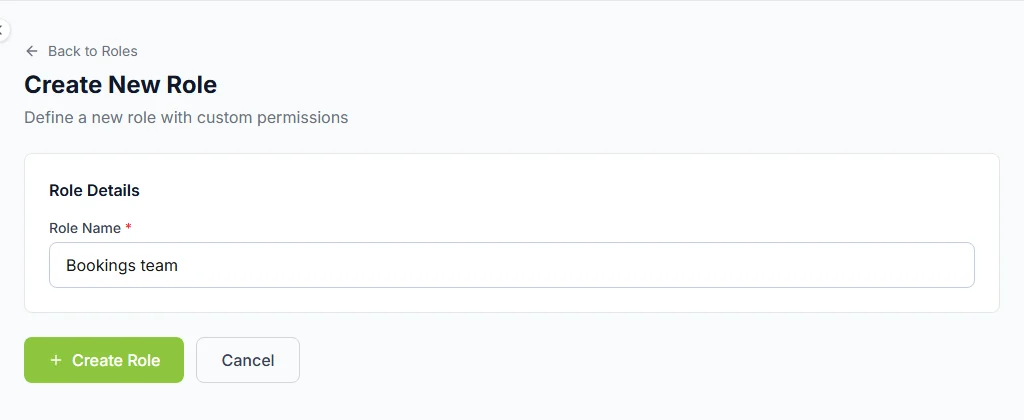
Tick only the boxes needed and save. For viewing without processing, use Read Only under Orders. For someone responsible for accepting requests, check-in and the rest of the booking workflow, review Update / Process Orders. Add the appropriate Products permissions only if the person works with extras. Avoid All Access as a shortcut for a narrow job.
Step 3: assign the user and test the handover
Open Users in Roles, select the role and choose Add User to Role. Pick the person, press Continue and complete Add to Role. Creating a role and creating a user are separate steps; assignment is what connects them. Check the membership rather than assuming the new user automatically inherited your intended role.
Ask the team member to sign in and open the pages needed for the job. Use a read-only review first: the correct business, the correct property and the correct booking. They should know what to do when the screen says their role can see a calendar but cannot change it. That message calls for an access review, rather than borrowing someone else’s sign-in.
Explain the arrival sequence using the self check-in guide. Someone handling arrival needs to understand when private codes become visible to the guest. They should also know where to send an unexpected arrival or an ID question, rather than improvising from a screenshot of the booking.
Step 4: agree what the manager must refer to you
A team handover should cover unusual cases as well as normal arrivals. Decide who may agree a longer stay, what happens if a guest reports damage and when the owner must be contacted. Keep the instructions short and findable. A long document nobody can open during an arrival is less useful than a clear contact and a short list of decisions.
Protect guest information in the handover. Read-only booking access includes files, so it deserves care even though it cannot process a booking. Do not copy ID photos into a rota or a general staff group. Share the timing and practical job rather than every detail visible on the booking.
If the manager handles breakfast, water or other paid items, agree who keeps the catalogue accurate. Our guide to selling stay extras explains the difference between offering an extra and billing something a guest has used. Permission to change an extra should belong to someone who knows whether you can actually provide it.
Step 5: review membership when work changes
Review access when a person changes duties, stops covering a property or leaves the team. Check both their role memberships and the boxes on those roles. Changing a shared role can affect everyone assigned to it, so read the membership list before broadening it for one person’s new responsibility.
Review physical access too. Removing dashboard access is not the same as collecting a key or changing a code someone already knows. Keep those tasks in the staff departure checklist. Cabans does not provide housekeeping rotas, so use your own schedule for shifts, cleaner assignments and the next person on duty.
Repeat the review when you add another property. A trusted person may know one home well but need a fresh handover for a building with different gate rules. Do not assume the role name explains that difference. Confirm the properties they are expected to cover, who holds the spare keys and which contact answers an arrival outside their normal hours. Keep that operational plan alongside the access review, so your team can use the account responsibly when the owner is unavailable.
A practical staff-access checklist
- Every account user has their own Cabans sign-in.
- The role name describes its purpose and the boxes match the job.
- You understand that read-only bookings include Earnings and files.
- The processing role is reserved for someone trusted with its full scope.
- The person knows which unusual decisions to refer to the owner.
- Role membership and physical access are reviewed when duties change.
To see the guest-facing side of your operation, search short lets in Abuja or browse short lets in Lagos and look at how listings explain the home and its rules. Your staff should be able to deliver the same arrangement the guest reads before booking.
Frequently asked questions
Can a team member see bookings without changing them?
Yes. Read Only under Orders allows viewing rather than processing. It also includes booking files, disputes and Earnings, so it is broader than a calendar-only view.
Can I give staff only check-in or door-code access?
There is no separate check-in-only or door-code-only permission in this setup. Update / Process Orders groups check-in, door codes, requests, calendar changes, deposits and other booking actions. Give it only to someone trusted with that full scope.
Does a staff member need their own Cabans account?
Yes. Create the user with the email of their existing Cabans account, then assign them to a role. Do not share the owner’s sign-in.
Can Cabans plan cleaning shifts for my team?
Cabans does not provide housekeeping rotas. Keep shift planning and turnover assignments in your own team routine, and use booking access only where the person needs it.
Connect the team to the whole stay
Return to the short-let management software guide to see where team access fits, and use the bookings workflow for the day-to-day steps. When your home and team are ready, list your short let on Cabans.
Take the next step
Keep your research practical: search for property in Lagos, compare live options for properties in Lagos, or list your property on Cabans to reach active buyers and renters.
Not ready yet? Get an email when new listings go up in Lagos.
Own a furnished home?
Get your home ready for guests and learn how to host on Cabans.