Your team and money
How to let your team manage bookings
The short answer
Add your team. Give each person a role with the right permissions. Then they can look after bookings for you.
Step by step
Step 1: Open "Roles & Permissions" in the seller menu.
Step 2: Press "Users", then "Create User".
Type their "Cabans Access Email", "First Name" and "Last Name". Then press "Create New User".
Good to know: The person must already have a Cabans account with that email.
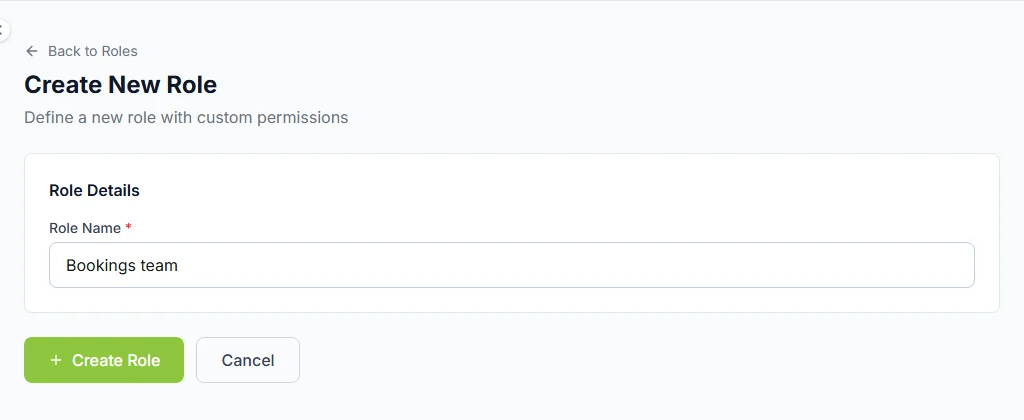
Step 3: Press "Roles", then "Create Role".
Type a "Role Name", for example Bookings team. Then press "Create Role".
Step 4: Tick the boxes this role needs, then press "Save".
The booking boxes are under "Order Access" and "Products Access". The table below shows which to tick.
Step 5: Press "Users in Roles" to put people in the role.
Open the role and press "Add User to Role". Pick the person and press "Continue". Then press "Add to Role".
Do it now
Which boxes to tick
Tick only what each person needs.
| To let them… | Tick this box on the role |
|---|---|
| To let them…See bookings, the calendar, files, disputes and "Earnings" | Tick this box on the role"Read Only" under "Orders" |
| To let them…Answer requests and extensions. Check guests in. Change the calendar. See door codes. Settle deposits. Refund unused nights. | Tick this box on the role"Update / Process Orders" under "Orders" |
| To let them…See stay extras, which they need to bill extras | Tick this box on the role"Read Only" under "Products" |
| To let them…Add, change or hide stay extras | Tick this box on the role"Read / Write" under "Products" |
| To let them…Do everything | Tick this box on the role"All Access" under "Administrator Access" |
Short names in booking messages
Some booking messages use short names for these boxes.
- "View Orders" means "Read Only" under "Orders".
- "Process Orders" means "Update / Process Orders".
- "View Products" means "Read Only" under "Products".
Emails for your team
Booking emails go to your store’s email and the store owner.
They also go to up to 10 team members with "Update / Process Orders".
See who changed what
The calendar’s "Change history" names the person who made each change.
Messages your team might see
| The message | What to do |
|---|---|
| The message"Your role in this store can see this calendar but not change it. Ask the store owner for the Process Orders permission." | What to doTick "Update / Process Orders" on their role. |
| The message"You do not have permission to do that for this store." | What to doCheck which boxes their role has ticked. |
Questions people ask
Does my team member need their own Cabans account?
Yes. They must already have a Cabans account with the email you type.
Who can see my door codes?
The store owner, and team members whose role has "Update / Process Orders" ticked.
Can someone see bookings but not change them?
Yes. Tick only "Read Only" under "Orders" on their role.
Read next
- Requests and decisionsHow to use your Bookings page"Bookings" shows every guest in tabs. New requests, arriving, staying, leaving and past.
- Getting bookableHow to add house rules, arrival steps, door code and Wi-FiWrite your house rules and arrival steps once. Guests see them when their booking is confirmed. They see the codes only after you check them in.
- Arrival and the stayHow to answer guest requests and bill extrasGuests can ask you for things. Press "Start", then "Mark as done". If they used extras, send them a bill.
More about your team and money
More on Cabans
Still stuck?
Tell us what happened. If you have a booking number, add it. Our team will help.
Contact usLast updated