Getting bookable
How to add house rules, arrival steps, door code and Wi-Fi
The short answer
Write your house rules and arrival steps once. Guests see them when their booking is confirmed. They see the codes only after you check them in.
Step by step
Step 1: Open your listing’s edit page.
Find the card "For your guests' stay". Press "Stay information".
Good to know: You can also open it from a booking. Press "Stay information" there.
Step 2: Fill in the "Before and during the stay" boxes.
They are "House rules", "Arrival and check-in instructions" and "Check-out checklist".
Good to know: Each box holds up to 4,000 characters. That is about a page of writing.
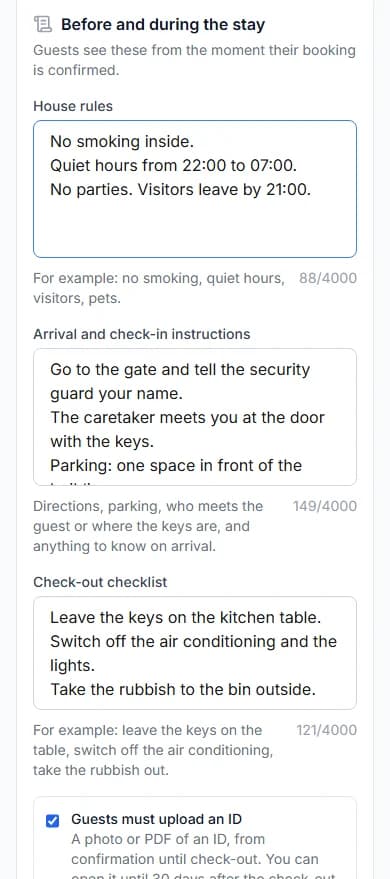
Step 3: Tick "Guests must upload an ID" if you need one.
Only you and our team can see a guest’s ID. You can open it until 30 days after check-out.
Step 4: Fill in "Wi-Fi and door code".
Add the "Wi-Fi network name", "Wi-Fi password" and "Door code".
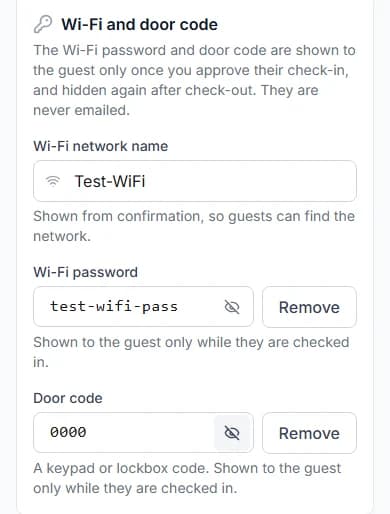
Step 5: Press "Save stay information".
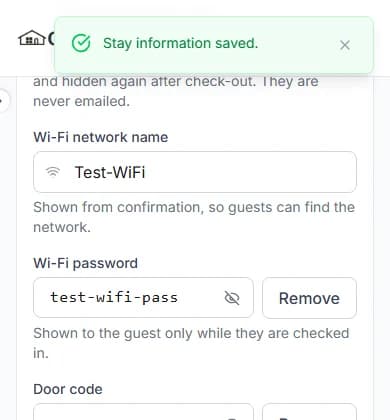
You see "Stay information saved." It is live at once. It does not wait for our team.
Do it now
Who sees what, and when
| What you write | When your guest sees it |
|---|---|
| What you writeHouse rules and arrival steps | When your guest sees itOnce their booking is confirmed |
| What you writeWi-Fi network name | When your guest sees itOnce their booking is confirmed |
| What you writeCheck-out checklist | When your guest sees itOnce they are checked in |
| What you writeWi-Fi password and door code | When your guest sees itOnly after you press "Approve check-in" |
Your codes are kept safe
- Codes are stored locked (encrypted), so they stay private.
- We never email them.
- Guests stop seeing them when you confirm check-out.
- They also stop 2 hours after the check-out time.
Changing or removing a code
Leave a code box alone to keep the code. Press "Remove" to clear it.
Changed your mind before saving? Press "Discard changes".
Messages you might see
| The message | What to do |
|---|---|
| The message"Codes cannot be saved at the moment. Leave this empty and save the rest." | What to doSave your rules now. Add the codes again later. |
| The message"A code is saved. You need the Process Orders permission to see it." | What to doYour role cannot see codes. Ask the store owner if you need them. |
Questions people ask
Do you email my door code to guests?
No. Codes are never emailed. Guests see them on their stay page, after you approve check-in.
When does my guest see the address?
Once their booking is confirmed.
Do I write this again for each booking?
No. You write it once for each home. Every booking at that home uses it.
Does this wait for our team to approve it?
No. Stay information goes live as soon as you save.
Read next
- Arrival and the stayHow to hand over keys and check your guest inWhen your guest arrives, give them the keys. Then press "Approve check-in". Only then do they see the door code.
- Getting bookableHow to sell stay extras to your guestsAdd things guests can buy while they stay, like water or breakfast. Tick which homes sell them.
- Your team and moneyHow to let your team manage bookingsAdd your team. Give each person a role with the right permissions. Then they can look after bookings for you.
More about getting bookable
- How to make your short let bookable onlineSet your home as a "Short Let". Give it a night price. Then tick "Take bookings online".
- How to set night prices for busy days and seasonsYour listing price is your normal night price. You can set a different price for some dates, or for one day.
- How to offer longer-stay discounts and free nightsGive guests a discount, or a free night, for staying longer. They get the one that saves them more, never both.
- How to choose your free-cancellation timePick how long before check-in guests can cancel for free. After that time, they cannot cancel.
More on Cabans
Still stuck?
Tell us what happened. If you have a booking number, add it. Our team will help.
Contact usLast updated