Getting bookable
How to set night prices for busy days and seasons
The short answer
Your listing price is your normal night price. You can set a different price for some dates, or for one day.
Step by step
Step 1: Open your listing’s edit page.
In the seller menu, press "Listings List". Then open the home.
Step 2: Go to "Availability, prices and booking rules".
Find the part called "Calendar".
Step 3: Pick a start date and an end date.
Tap the start date on the calendar. Then tap the end date.
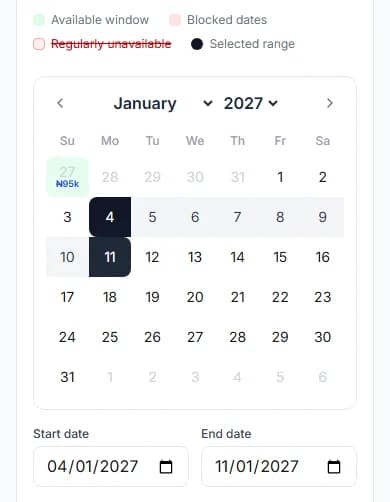
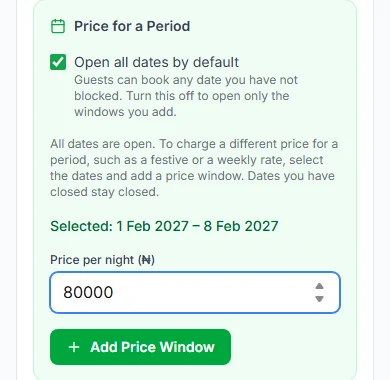
Step 4: Use "Price for a Period" for a group of dates.
Type the "Price per night (₦)". Then press "Add Price Window".
Good to know: You see "Price for a Period" when "Open all dates by default" is on.
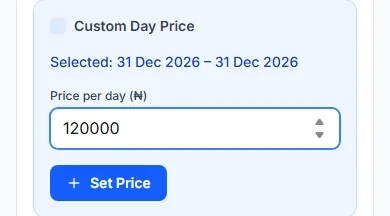
Step 5: Use "Custom Day Price" for one special day.
Type the "Price per day (₦)". Then press "Set Price".
Good to know: Already set a price for that day? The button says "Update Price".
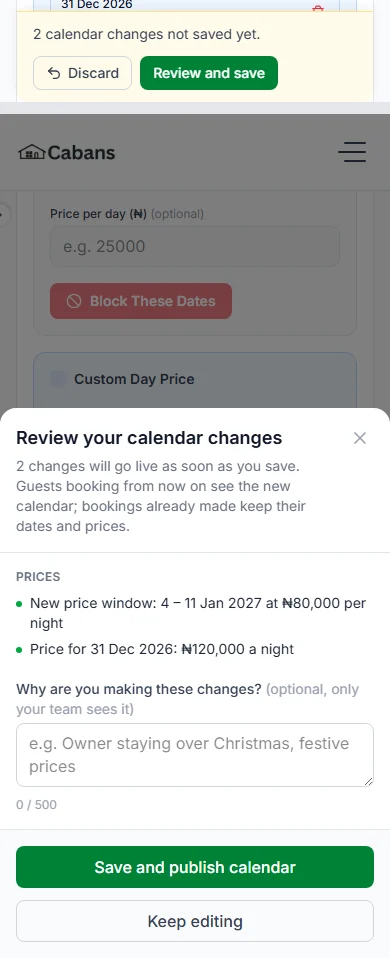
Step 6: Press "Review and save calendar".
Check the list of changes. Then press "Save and publish calendar". You see "Calendar saved".
Good to know: The listing’s own Save button does not save the calendar. A bar tells you how many changes are not saved yet.
Do it now
Which price does a night use?
Each night uses one price. We look in this order:
- First, a special day price for that night.
- Next, a price window that covers that night.
- Last, your listing’s normal price.
Two price windows on the same night?
The window that starts later wins for that night.
What guests see
Each free day shows its price in small blue text, like "₦50k". That means ₦50,000 (fifty thousand naira) a night.
A night with no price cannot be booked. It looks grey to guests.
Good to know
- New prices never change bookings already made.
- Calendar changes go live when you save. They do not wait for our team.
- There is no weekend rule. Set busy days with day prices or price windows.
- There is no price per guest. The price is the same for any number of guests.
Messages you might see
| The message | What to do |
|---|---|
| The message"Something in the calendar cannot be saved. Check the dates and prices, then try again." | What to doLook at the dates and prices you changed. Fix any that look wrong. Save again. |
| The message"Your role in this store can see this calendar but not change it. Ask the store owner for the Process Orders permission." | What to doAsk the store owner to give your role that permission. |
Questions people ask
Do new prices change bookings I already have?
No. Bookings already made keep their dates and prices.
Can I charge more at weekends?
There is no weekend rule. Set a special day price for each busy day, or add a price window.
Does our team need to approve calendar prices?
No. Calendar prices go live as soon as you save. Only your listing’s normal price waits for our team.
Why can’t guests book some of my nights?
Those nights may have no price. Give them a price, or check that they are not closed.
Read next
- Getting bookableHow to open, close and block datesAll days are open unless you close them. Pick the dates you cannot host, and block them.
- Getting bookableHow to offer longer-stay discounts and free nightsGive guests a discount, or a free night, for staying longer. They get the one that saves them more, never both.
- Getting bookableHow to set your booking rules and instant bookChoose how guests book. Set the shortest and longest stay, the most guests and how far ahead. Then say yes yourself, or let instant book do it.
More about getting bookable
- How to make your short let bookable onlineSet your home as a "Short Let". Give it a night price. Then tick "Take bookings online".
- How to choose your free-cancellation timePick how long before check-in guests can cancel for free. After that time, they cannot cancel.
- How to add house rules, arrival steps, door code and Wi-FiWrite your house rules and arrival steps once. Guests see them when their booking is confirmed. They see the codes only after you check them in.
- How to sell stay extras to your guestsAdd things guests can buy while they stay, like water or breakfast. Tick which homes sell them.
More on Cabans
Still stuck?
Tell us what happened. If you have a booking number, add it. Our team will help.
Contact usLast updated