Arrival and the stay
How to hand over keys and check your guest in
The short answer
When your guest arrives, give them the keys. Then press "Approve check-in". Only then do they see the door code.
Step by step
Step 1: Look out for the email when your guest arrives.
Your guest presses "I have arrived". You get "[guest name] has arrived at [home name]".
Good to know: Guests can press "I have arrived" from the day before check-in.
Step 2: Open the booking.
Find "Check-in and check-out". The first step says "Guest arrived".
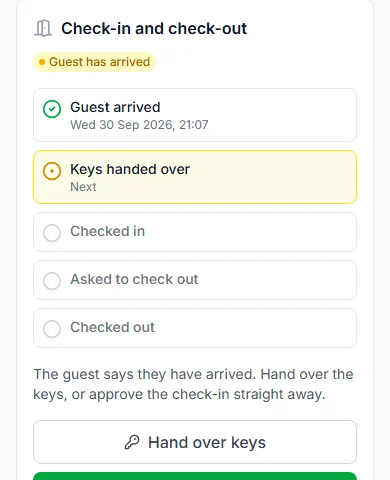
Step 3: Press "Hand over keys" when you give the keys.
A box asks "Hand over the keys?". Confirm it. This step is optional.
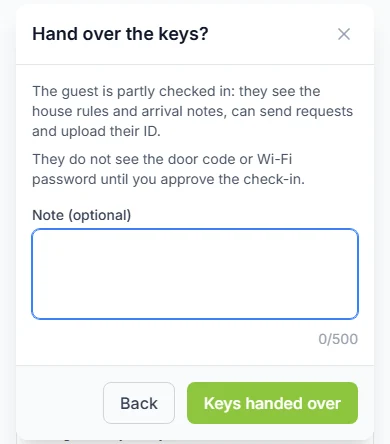
Step 4: Press "Approve check-in".
A box asks "Approve the check-in?". Confirm it.
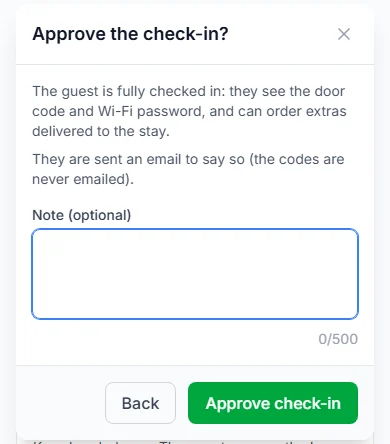
Step 5: Let your guest settle in.
They now see the door code and Wi-Fi password. They can order extras too. We email them to say they are checked in.
Good to know: The codes are never in the email. Guests only see them on their stay page.
Do it now
What your guest can do at each step
| Step | Your guest can | Your guest cannot yet |
|---|---|---|
| Step"Keys handed over" | Your guest canRead the house rules and arrival notes. Send some requests. Upload their ID. | Your guest cannot yetSee the door code or Wi-Fi password. Order extras. |
| Step"Checked in" | Your guest canSee the door code and Wi-Fi password. Send any request. Order extras. | Your guest cannot yetNothing is locked now. |
You can skip the keys step
You can press "Approve check-in" straight away. The keys step then shows "Skipped".
Checking your guest’s ID
Did you tick "Guests must upload an ID"? Open "ID and condition photos", then "Guest ID".
Each file opens with a link. The link works for 15 minutes (a quarter of an hour).
You can open it until 30 days after check-out. We keep it for up to 6 years after the stay, as data laws require. Then it is deleted.
Photos before the stay
Take photos of the home before your guest moves in. Use "Add check-in photos". You can add up to 10 photos each time.
Photos show how the home looked. They help if something gets damaged.
Questions people ask
Does my guest see the door code before I approve check-in?
No. They see it only after you press "Approve check-in".
Do you email the door code to my guest?
No. We email them to say they are checked in. The codes are never emailed.
How long can my guest see the codes?
Until you confirm check-out. Never later than 2 hours after the check-out time.
Do I have to press "Hand over keys"?
No. It is optional. You can press "Approve check-in" straight away.
Read next
- Getting bookableHow to add house rules, arrival steps, door code and Wi-FiWrite your house rules and arrival steps once. Guests see them when their booking is confirmed. They see the codes only after you check them in.
- Arrival and the stayHow to answer guest requests and bill extrasGuests can ask you for things. Press "Start", then "Mark as done". If they used extras, send them a bill.
- Check-out and the caution depositHow to confirm check-out and add condition photosWhen your guest leaves, check the home. Add photos if you like. Then press "Confirm check-out".
- During your stayHow to see your door code and Wi-Fi passwordOnce you are checked in, tap to see the code. It hides again after one minute to keep it safe.
More about arrival and the stay
More on Cabans
Still stuck?
Tell us what happened. If you have a booking number, add it. Our team will help.
Contact usLast updated