Host Academy · Lesson 8 · about 5 minutes
Get ready for arrival
The short answer
Write your house rules, arrival steps and check-out list once. Guests see them when the booking is confirmed. They see the door code and Wi-Fi password only after you check them in.
What you will learn
- Where to write your stay information.
- What guests see, and when.
- How your door code and Wi-Fi password stay safe.
- How to ask guests for an ID.
Write your stay information, step by step
Step 1: Open "Stay information".
On your listing’s edit page, find the card "For your guests' stay". Press "Stay information".
Good to know: You can also open it from a booking. For a new home, the listing page is the way in.
Step 2: Write your "House rules".
Keep each rule short and kind. For example: no parties, and no smoking indoors.
Step 3: Write your "Arrival and check-in instructions".
Say how to find the home. Name a landmark, the gate and the floor. Say who will meet the guest.
Step 4: Write your "Check-out checklist".
List what to do before leaving. For example: switch off the air conditioner and lock the windows.
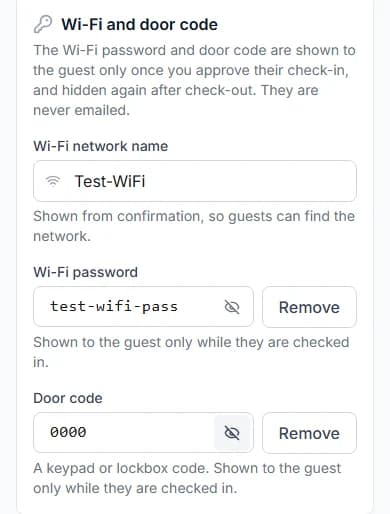
Step 5: Add your Wi-Fi and door code.
Fill in "Wi-Fi network name", "Wi-Fi password" and "Door code".
Good to know: A code box you leave alone keeps its code. Press "Remove" to clear one.
Step 6: Tick "Guests must upload an ID", if you need one.
Guests are then asked for a passport, driving licence or national ID card.
Step 7: Press "Save stay information".
It goes live at once. No approval is needed. You see "Stay information saved."
Who sees what, and when
Your guest sees each part at a different time.
| What you write | When your guest sees it |
|---|---|
| What you writeHouse rules and arrival steps | When your guest sees itOnce the booking is confirmed |
| What you writeThe home’s address | When your guest sees itOnce the booking is confirmed |
| What you writeWi-Fi network name | When your guest sees itOnce the booking is confirmed |
| What you writeCheck-out checklist | When your guest sees itDuring the stay |
| What you writeWi-Fi password and door code | When your guest sees itOnly after you approve check-in, until check-out |
How codes stay safe
- We store codes scrambled, so nobody can read them. This is called encrypted.
- We never email them.
- Your guest must tap to see them. They hide again after one minute.
- They disappear when you confirm check-out.
- Team members without the "Process Orders" permission cannot see them.
Guest ID
Only you and our team can see a guest’s ID.
You open it from the booking, under "ID and condition photos".
You can open it only until 30 days (about a month) after check-out.
We keep it for up to 6 years after the stay, as data laws require. Then it is deleted.
Check-in photos
Each booking has "Add check-in photos". Take photos of how the home looks before your guest arrives.
You can add up to 10 photos at a time. They help if something gets damaged later.
Tips for clear stay information
- One instruction per line.
- Name things your guest will see, like a gate colour or a shop.
- Say what to do if the power goes off.
- Write every section. Empty ones say so to the guest, like "No house rules have been added."
Your practice task
Do this on the real screen. The "Your listings" button is just below.
- Open one short let and press "Stay information".
- Write one clear house rule and one arrival step.
- Press "Save stay information", or "Discard changes" if you were only practising.
- Then answer the three questions below. After that, go on to lesson 9: Welcome day.
Try it yourself
Open the real screen and find each step from this lesson.
Check what you learned
Pick an answer, then press "Check my answer". You can try again as many times as you like.
Questions people ask
Can I change the door code between guests?
Yes. Open "Stay information", type the new code and save. It goes live at once.
What if I do not add a door code?
Your guest sees a note that you have not added one. They can message you for it.
Does stay information need approval?
No. It goes live as soon as you press "Save stay information".
Read next
- Getting bookableHow to add house rules, arrival steps, door code and Wi-FiWrite your house rules and arrival steps once. Guests see them when their booking is confirmed. They see the codes only after you check them in.
- Arrival and the stayHow to hand over keys and check your guest inWhen your guest arrives, give them the keys. Then press "Approve check-in". Only then do they see the door code.
- During your stayHow to see your door code and Wi-Fi passwordOnce you are checked in, tap to see the code. It hides again after one minute to keep it safe.
More on Cabans
Still stuck?
Tell us what happened. If you have a booking number, add it. Our team will help.
Contact usLast updated