Host Academy · Lesson 9 · about 5 minutes
Welcome day: arrival, keys and check-in
The short answer
Your guest presses "I have arrived", and we email you. Hand over the keys if you like. Then press "Approve check-in", and the door code and Wi-Fi open for them.
What you will learn
- How you know your guest is at the door.
- What "Hand over keys" does.
- What "Approve check-in" opens for your guest.
- Why the order matters.
Check your guest in, step by step
Step 1: Look at the "Arriving" tab.
Open "Bookings". The "Arriving" tab lists guests due from yesterday to tomorrow who are not checked in yet.
Step 2: Wait for the email.
When your guest presses "I have arrived", we email you. The subject says they have arrived at your home.
Good to know: Guests can press it from the day before check-in. They may add a note, like where they are waiting.
Step 3: Open the booking.
Find the panel "Check-in and check-out". It shows each step of the stay.
Step 4: Give the keys, then press "Hand over keys".
This step is up to you. Your guest can now read the house rules and upload their ID. They cannot see the codes yet.
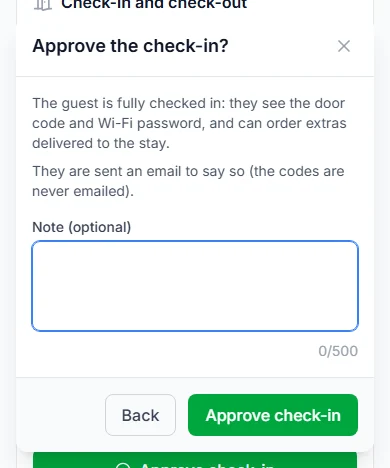
Step 5: Press "Approve check-in".
A box asks "Approve the check-in?" Press "Approve check-in" again. Your guest is now fully checked in.
Good to know: We email your guest to say so. The email never has the codes in it.
Step 6: Check the step now says "Checked in".
Your guest’s page updates by itself. The codes appear without them reloading the page.
What your guest can do at each step
Each step opens a little more for your guest.
| The step | What your guest can do |
|---|---|
| The step"Guest has arrived" | What your guest can doWait for you. Message you. |
| The step"Keys handed over" | What your guest can doRead the house rules and arrival notes. Upload their ID. Report an issue, or ask for something else. |
| The step"Checked in" | What your guest can doSee the door code and Wi-Fi password. Use every stay service. Order extras. See their bill. Ask to stay longer. |
You can skip the keys step
You can press "Approve check-in" straight after your guest arrives. The keys step then shows "Skipped".
Do this when you give the keys and check them in together.
Before you approve check-in
- Check the guest is the person who booked. Their name is on the booking.
- Asked for an ID? Open "ID and condition photos", then "Guest ID". Each file opens for 15 minutes (a quarter of an hour).
- Show them the lights, the water and the power.
If something goes wrong
What you see, and what to do.
| What you see | What to do |
|---|---|
| What you seeYour guest cannot see the codes. | What to doCheck you pressed "Approve check-in", not only "Hand over keys". |
| What you seeYour guest cannot press "I have arrived". | What to doIt opens the day before check-in. Ask them to try again then. |
| What you seeThe booking page has not changed. | What to doIt refreshes by itself every minute. You can also press "Refresh". |
Your practice task
Do this on the real screen. The "Open Bookings" button is just below.
- Open the "Arriving" tab. Who is due soon?
- Open one booking and find the panel "Check-in and check-out".
- Find "Hand over keys" and "Approve check-in". Only press them when a guest is really there.
- Then answer the three questions below. After that, go on to lesson 10: During the stay.
Try it yourself
Open the real screen and find each step from this lesson.
Check what you learned
Pick an answer, then press "Check my answer". You can try again as many times as you like.
Questions people ask
Do guests get the door code by email?
No. Codes are never emailed. Guests see them on their stay page once you approve check-in.
Is my guest emailed when I hand over the keys?
No. They get an email only when you approve check-in.
Can my guest message me while they wait?
Yes. They can message you at every step of the stay.
Read next
- Arrival and the stayHow to hand over keys and check your guest inWhen your guest arrives, give them the keys. Then press "Approve check-in". Only then do they see the door code.
- During your stayHow to check in when you arriveWhen you get there, press "I have arrived". Your host gives you the keys, then checks you in.
- During your stayHow to see your door code and Wi-Fi passwordOnce you are checked in, tap to see the code. It hides again after one minute to keep it safe.
More on Cabans
Still stuck?
Tell us what happened. If you have a booking number, add it. Our team will help.
Contact usLast updated